Install VS Code
INFO
This page contains instructions for installing Visual Studio Code (VS Code), the code editor we recommend for this course.
TIP
If you already have VS Code installed, you can skip this step. Note that Visual Studio and Visual Studio Code are different code editors, both made by Microsoft.
We recommend using Visual Studio Code (VS Code) as your code editor for this course. You can download it for free from here.
Install Extensions
Once you have installed VS Code, you will need to install the following extensions:
TIP
If you are not familiar with how to install extensions in VS Code, you can follow these detailed instructions, but in short, you can click on the extensions icon in the left sidebar:
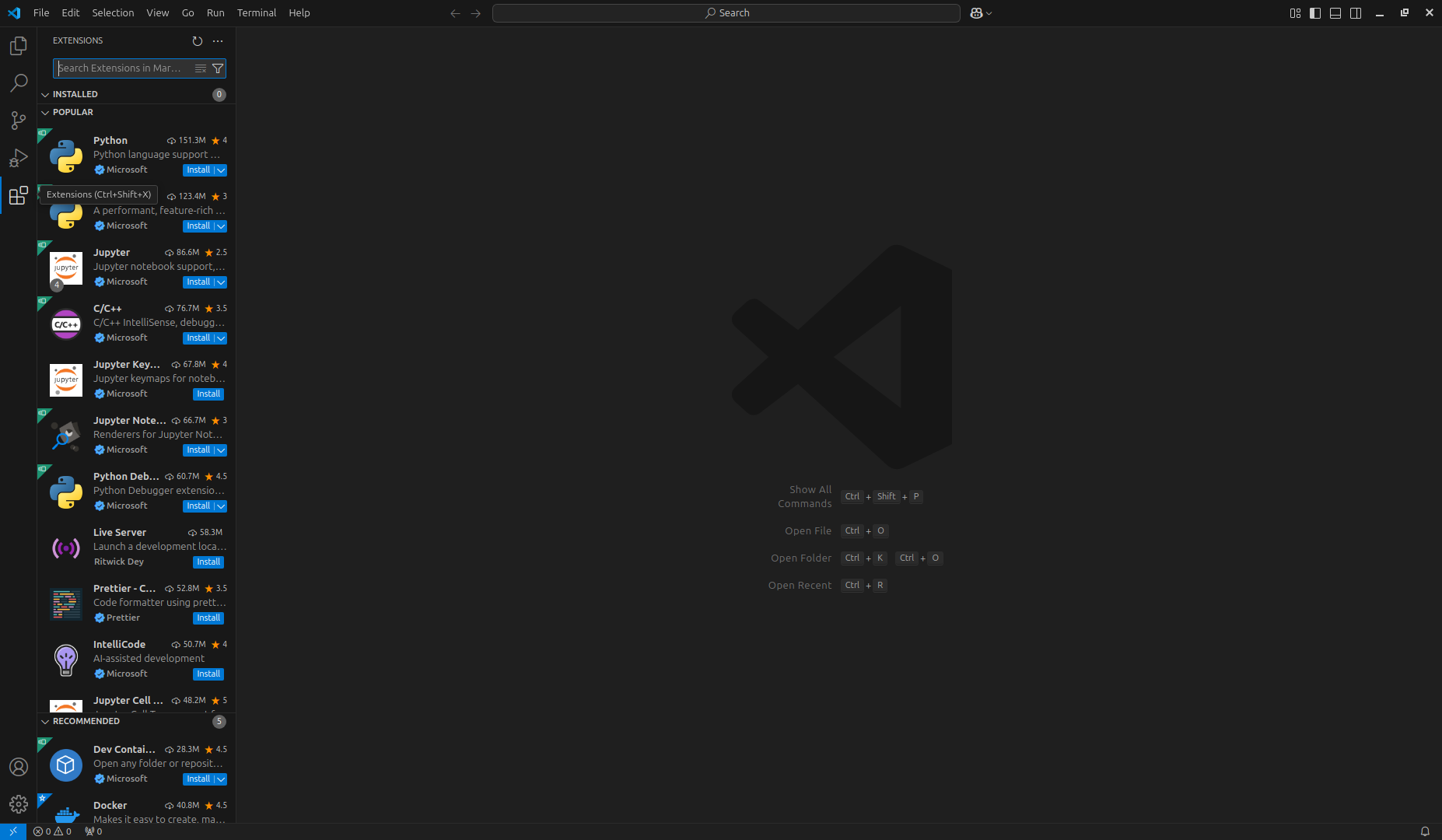
Then, search for the desired extension, click on the Install button, and wait for the installation to complete.
TIP
Once you've installed VS Code and the extensions above, head back to the Student Environment page to continue with setting up the course dev container.
This page created with the help of Claude AI.